InterPro 110.0 and InterProScan 6: a re-engineered pipeline and AI-ready access to the protein universe
A rebuilt InterProScan, InterPro-N predictions for your own sequences, a new Matches API and an MCP server bring faster, self-service and AI-ready protein classification.
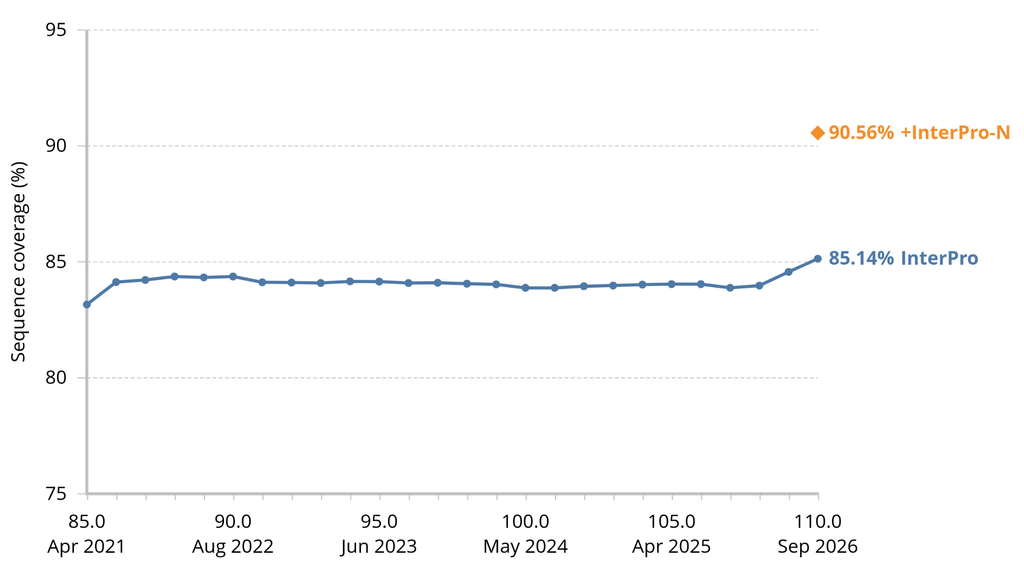
Last year, InterPro 105.0 introduced InterPro-N, TED domains and predicted viral structures. Since then we have made five further releases and rebuilt some of the resource’s most important systems, which InterPro 110.0 now brings together.
A new InterProScan: version 6
After twelve years, InterProScan 5 has been succeeded by InterProScan 6, a complete reimplementation built on the Nextflow workflow system, described in its own paper. It now powers everything on the platform, both the pre-computed matches on the website and the results for sequences you submit. For anyone running it locally, the gains are substantial:
- Runs anywhere: Linux, macOS and Windows (using WSL); HPC schedulers such as Slurm and LSF; AWS and Google Cloud; with Docker, Singularity, Apptainer or Podman.
- Code and data are separate: several InterPro versions can share one data store, and you can pin a specific release at runtime for exact, reproducible re-analysis.
- Data downloads on demand: no large up-front bundle; only the files your analyses need are fetched, then kept for reuse.
- Faster: up to roughly two-fold quicker than InterProScan 5 on large eukaryotic proteomes; the human proteome drops from over 12 hours to under 7.
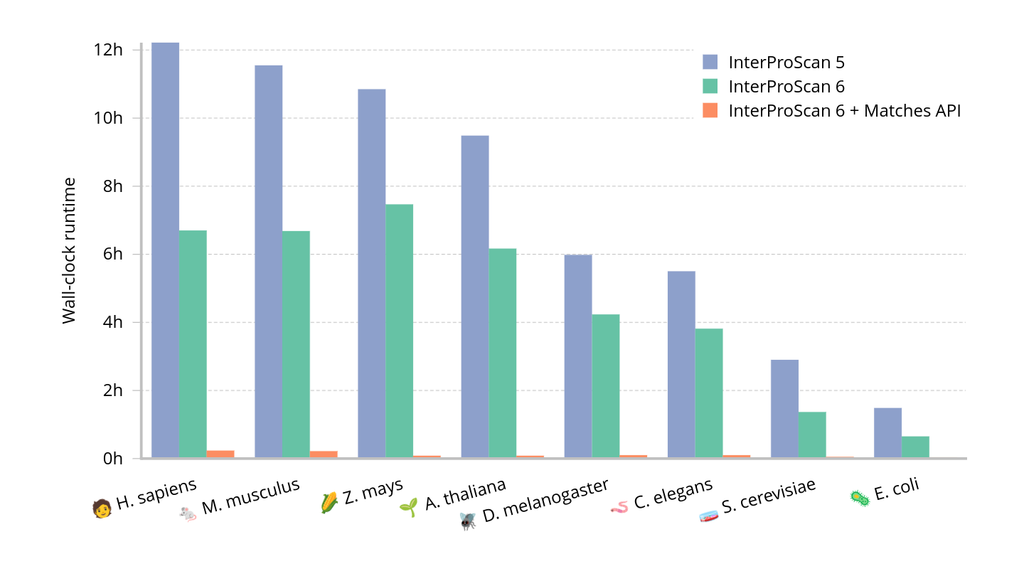
Much of that speed comes from the new Matches API, which InterProScan 6 uses to look up pre-computed matches for sequences already in UniParc and skip re-analysing them. The same endpoint is openly queryable so you can fetch annotations for known sequences without running InterProScan at all.
Getting started is simple: InterProScan 6 requires no manual installation, and the documentation provides ready-to-run examples. InterProScan 5 remains available but will no longer be updated, so we encourage moving to version 6. Its feature predictions are also modernised: signal peptides and transmembrane regions now come from the deep-learning methods SignalP 6 and TMbed, with Phobius still supported.
InterPro-N, now for your own sequences
InterPro-N, developed by Laetitia Meng-Papaxanthos and Felipe Llinares-López from Lucy Colwell’s group at Google DeepMind, predicts member-database matches directly from a sequence, annotating proteins that conventional signatures miss. When it launched with InterPro 105.0, the predictions were a fixed set supplied by Google DeepMind: new sequences received none, and submitted searches were not covered. With InterPro 110.0, Google DeepMind has shared the inference code with us, and we now run it inside InterProScan 6, which means:
- New sequences are covered as they are added in subsequent InterPro releases, rather than frozen at one point in time.
- Your submitted searches are covered: InterPro-N predictions are now available for sequences run through the sequence search.
Once the inference code is publicly released, users will be able to run InterPro-N locally through InterProScan 6 too.
Pfam clan relationships, reimagined
This Interpro 110.0 release includes a new Pfam clan network interactive view, which makes it easier to visualise clan memberships and the relationships between members according to an all-versus-all comparison of Pfam entries by structural and profile methods. This is a more interactive view, as nodes can be moved, the size of the nodes or the labels can be customised by using the Show size controls button at the top of the viewer, as well as zooming in and out (with the mouse) or opening the Pfam entries in a different InterPro tab by using ctrl/cmd+click on the node. Additionally, there is a “Find an entry” search box on the left corner of the viewer, which allows searching for a specific Pfam accession or Pfam ID which then zooms on it and its relationships with other members. It also provides information about the specific Pfam entry in the bottom-right corner, with the tooltip. Below, there is an example of the new view and the result when searching a particular Pfam entry.
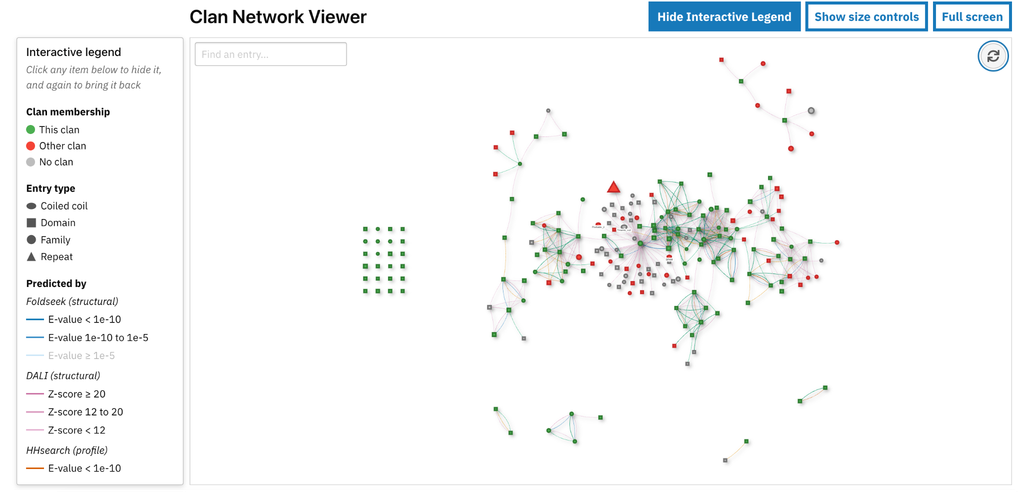
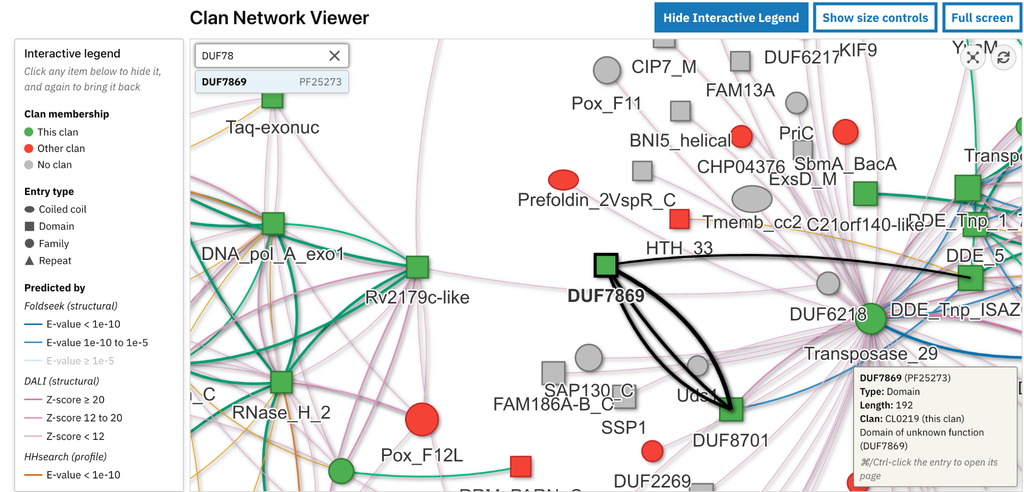
This viewer is built using different comparison methods to predict the relationships: Foldseek and DALI as structural methods that can detect similarities that haven’t been detected at the sequence level, while HHsearch is a profile-profile comparison method and SCOOP scores families based on the sequence matches that they share. The threshold used for each method is shown using the Show Interactive Legend button at the top, which is displayed on the left hand side of the viewer. In the full screen mode, this button disappears, and the legend is displayed directly at the bottom of the clan viewer. The thresholds for Foldseek and HHsearch are E-value >=1e-5, 1e-10 to 1e-5 and >1e-10, coloured in blue and orange respectively, for the edges/connections linking related Pfams. For DALI, the Z-score used is <12, 12 to 20 and > 20, in pink and finally, in green lines is SCOOP, with scores 30 to 100 and > 100. The thickness of the edges represents the significance of the scores. By clicking on the scores/thresholds ranges in the legend, it is possible to toggle them on and off, then the edges for the selected method/s and scores will disappear together with the Pfam entries in another clan or without a clan assignment, while remaining the members in the clan. As in the example above, there can be Pfam families that do not have relationships with other members within the inclusion cut-off and are placed apart, like the 24 families arranged forming a square shape on the left.
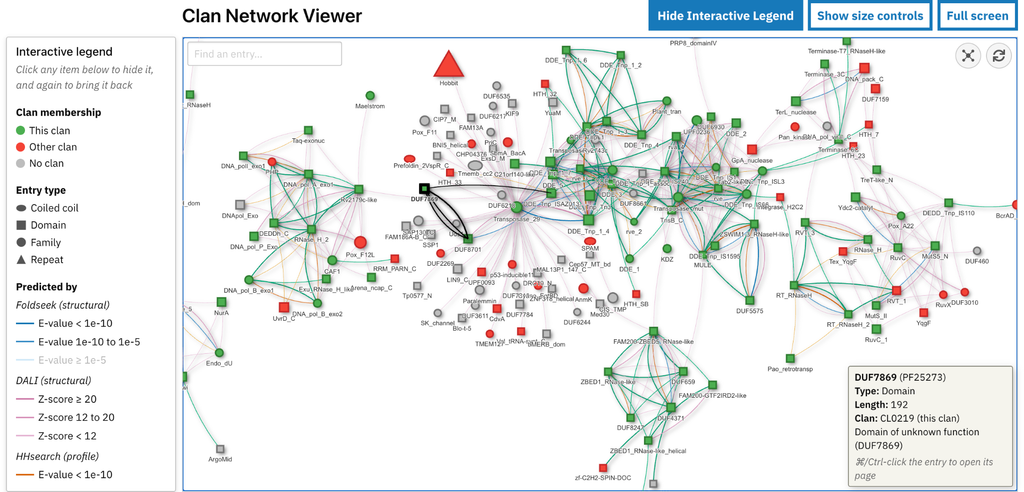
Each Pfam entry is represented in different shapes according to the entry type: ellipses for Coiled-coils, squares for Domains, circles for Families and triangles for Repeats. The size of the shapes represents the length of the model. There is also a colour scheme to indicate if the Pfam entry belongs to the clan, which is green, while red means it belongs to a different clan. Grey colour means they don’t have a clan membership assigned. Hovering the mouse over the Pfam entry or the lines shows details about them in the tooltip, at the bottom, on the right corner of the viewer, as shown in the image below.
Another feature of the viewer, which facilitates the exploration of Pfam entries particularly in populated clans, is the pop-up button displayed at the top right corner of the viewer, together with the reload icon (which resets any selections or filters applied), highlighted in blue in the image below, when a Pfam entry/node is selected. This way, the Pfam of interest and its connections are zoomed in, getting a clearer image. The image below shows an example when clicking on the DUF7869 (PF25273) node.
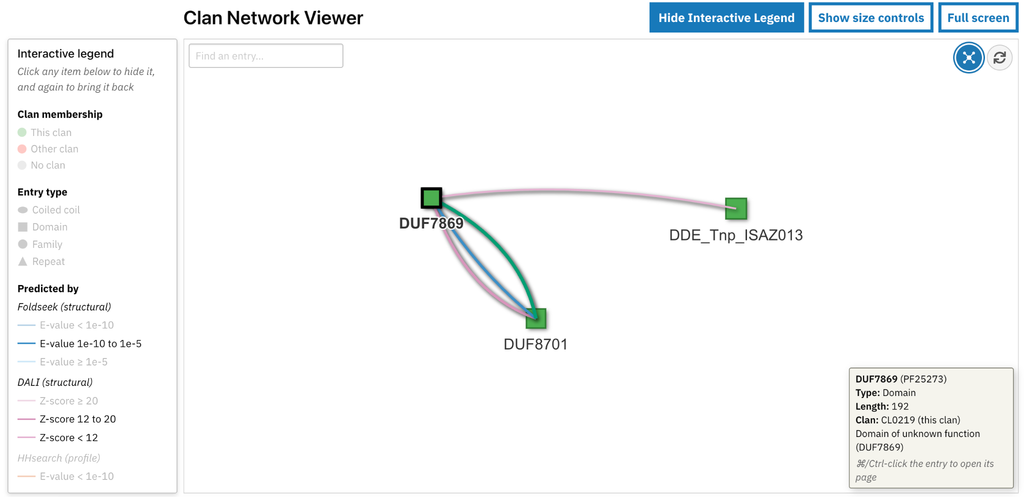
Some families in different clans can be linked due to low thresholds, or wrong clan assignment. In some other cases, the relationship between a grey family and one in the clan (green), may indicate that it might be included in it. To solve this, a Pfam curator needs to check manually this relationship to determine if the prediction is correct and supported by other methods. If a Pfam entry might be in the wrong clan (red), it should be fixed after manual checking as well.
Ask InterPro in natural language: MCP server and DocBot
As researchers increasingly work alongside AI assistants, InterPro now provides a Model Context Protocol (MCP) server. Rather than an assistant chaining raw REST calls, or answering from its training data, it exposes InterPro through 13 well-described tools that coordinate several EMBL-EBI services per call. So a researcher can ask “What domains are in UniProt P99999, and where?”, “Is PF00069 mostly eukaryotic or bacterial?”, or “Run InterProScan on this sequence and tell me its domains” and get answers grounded in current InterPro data. It is hosted at www.ebi.ac.uk/interpro/mcp, listed in the BioContextAI registry, and needs no account or API key.
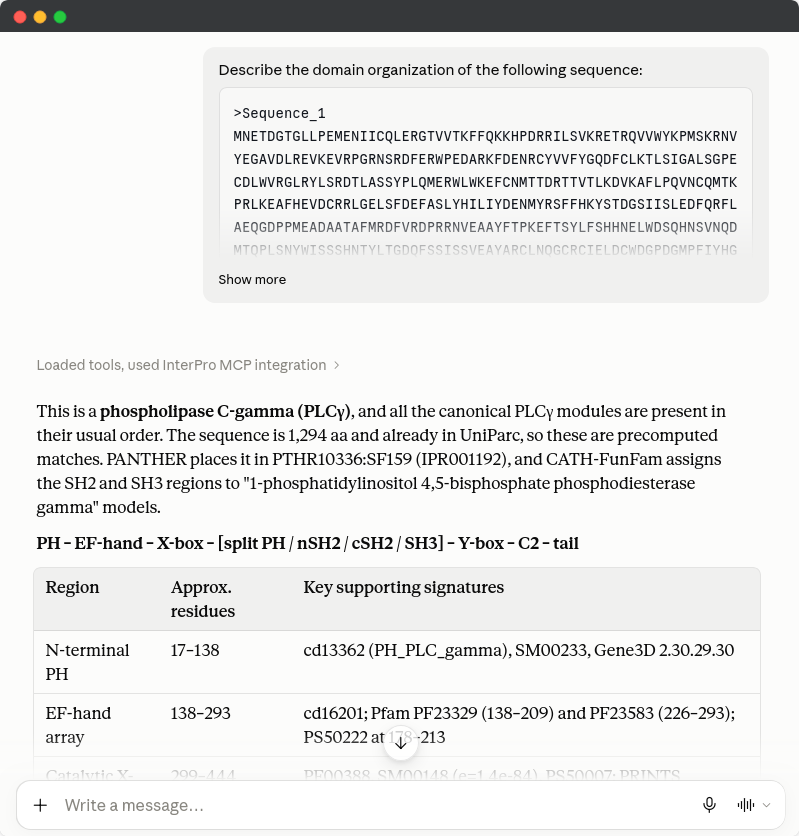
Not every question needs a full AI assistant. Every page of the InterPro website now carries a DocBot button in the bottom-right corner, which opens a chat window where you can ask about InterPro in plain language. DocBot, the EMBL-EBI chatbot, pairs a language model with a retrieval step: rather than answering from the model’s own knowledge, it pulls relevant passages from InterPro’s documentation, uses them to compose a reply, and cites the sections it drew on so you can check the source.
Analysis-ready bulk data in Apache Parquet
Reference data is increasingly consumed inside data-science and machine-learning pipelines, where format matters. Alongside the FTP distribution, we now provide the complete set of InterPro matches to UniProtKB in Apache Parquet, the column-oriented standard for large tabular data. Because it stores data by column, tools read only what a query needs. The files are compressed and versioned by release, so analyses are reproducible, and the files are the natural starting point for training models on InterPro data.
Find out more
- Explore the data: InterPro
- Run it yourself: InterProScan 6 on GitHub · docs · paper
- Query annotations: InterPro API · Matches API
- Connect an AI assistant: MCP server
- Bulk data: FTP site
We hope you find these updates useful, and we always welcome your feedback. Please send any questions, comments or suggestions to the InterPro helpdesk.
Edit